LabGit 03: Sharing/Collaborating with Git
Maintained by: mikerb@mit.edu  Get PDF
1 Overview and Objectives
2 Invite Others to Collaborate on a Private GitHub Repo
2.1 Attaching your Local Repo to the GitHub Repo
3 Using Git to clone an Existing Repository
3.1 Cloning the MOOS-IvP Repository from GitHub
3.2 Build the MOOS-IvP Source Code and Run It
3.3 Getting Info on a Repo's Origin
3.4 Looking at Recent Commit Log
3.5 Looking at Recent Commit Hash
4 Configure your Git Environment
1 Overview and Objectives
Goals for this lab:

- Share your private GitHub tree with others for viewing
- Share your private GitHub tree with other contributors with push access
- Enable your GitHub tree to accept pull requests
While having a purely private GitHub tree to yourself does have value, allowing others to view, directly edit, or submit requests for changes will allow for levels of collaboration when desired. For MIT 2.680 students, one of the first steps will be to provide read access to your moos-ivp-extend tree to the class TAs. This enables the TAs provide remote help, and for some labs, to verify completed work.
2 Invite Others to Collaborate on a Private GitHub Repo
Inviting collaborators to a GitHub hosted repository is done through the GitHub web interface. Navigate to your newly created moos-ivp-extend, e.g., moos-ivp-stanlee repo, and click the settings button:

Figure 2.1: Edit the settings on your repository.
Then select "Collaborators
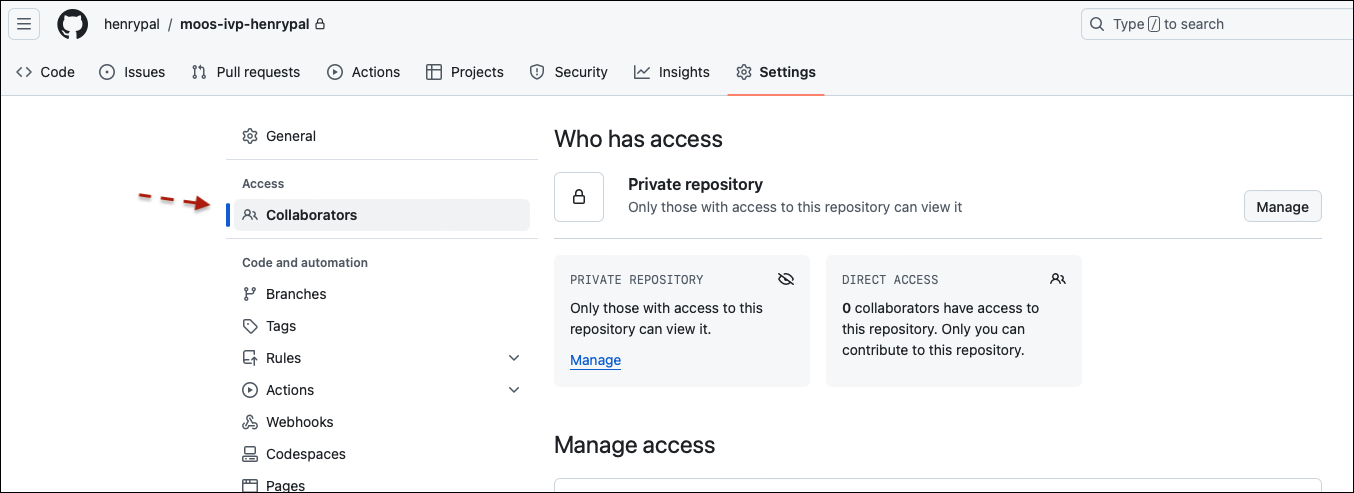
Figure 2.2: Select Collaborators to add collaborators.
In the top part of the page, select the options as shown in the Figure 2.3 below. (a) select No Template, (b) select the repo name equivalent to moos-ivp-stanlee, (c) Add a short description similar to as shown, and (d) make this a Private repo for now.
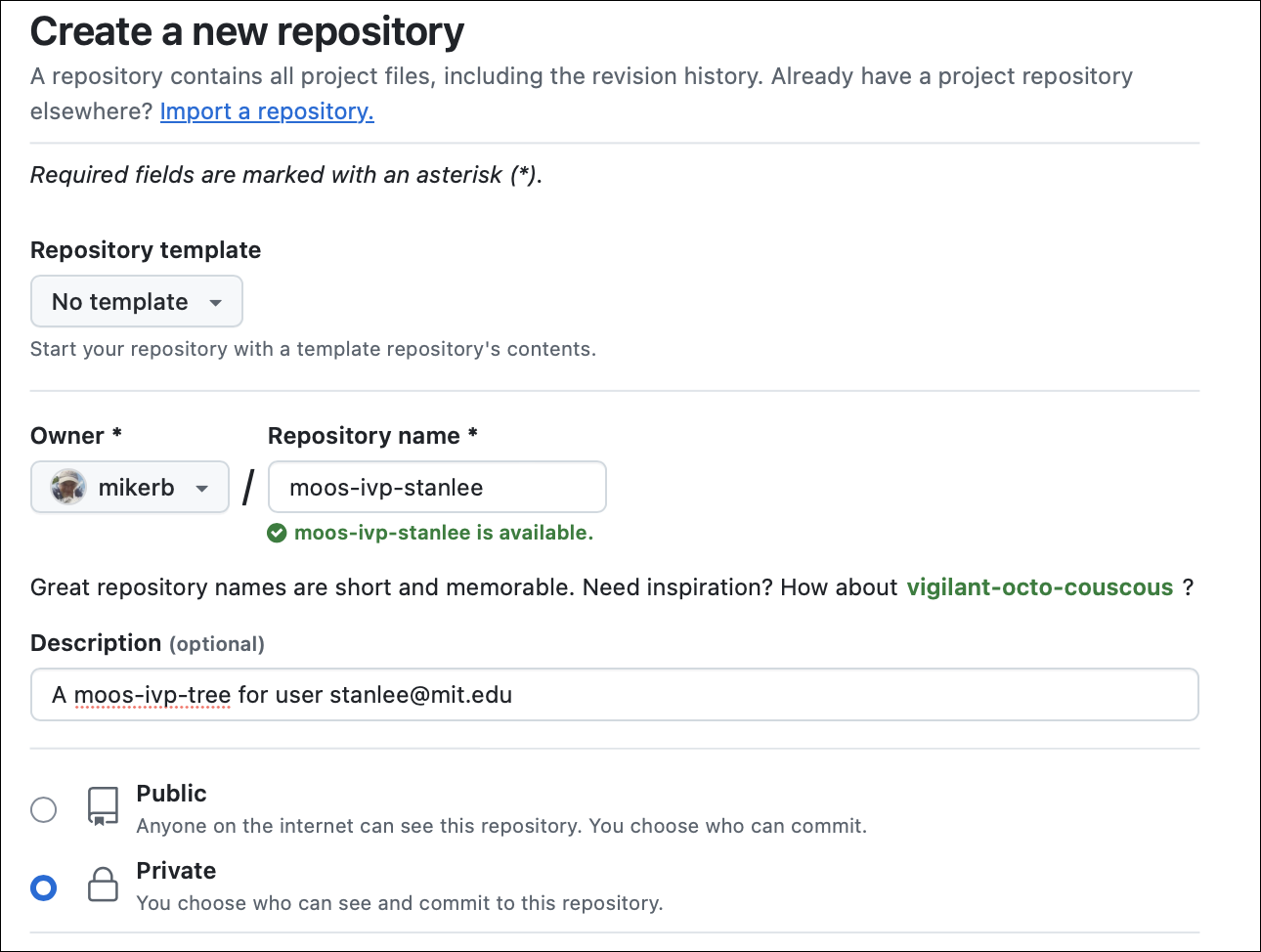
Figure 2.3: Configuring a new repository: Select the options as shown or similar for your repo name.
In the bottom part of the page, select the options as shown in the Figure 2.4 below. (a) the button to add a README file, (b) For the Add .gitignore pull-down menu, select the .gitignore template: C++, (c) select the GNU General Public License v3.0, and finally click the green Create repository button.
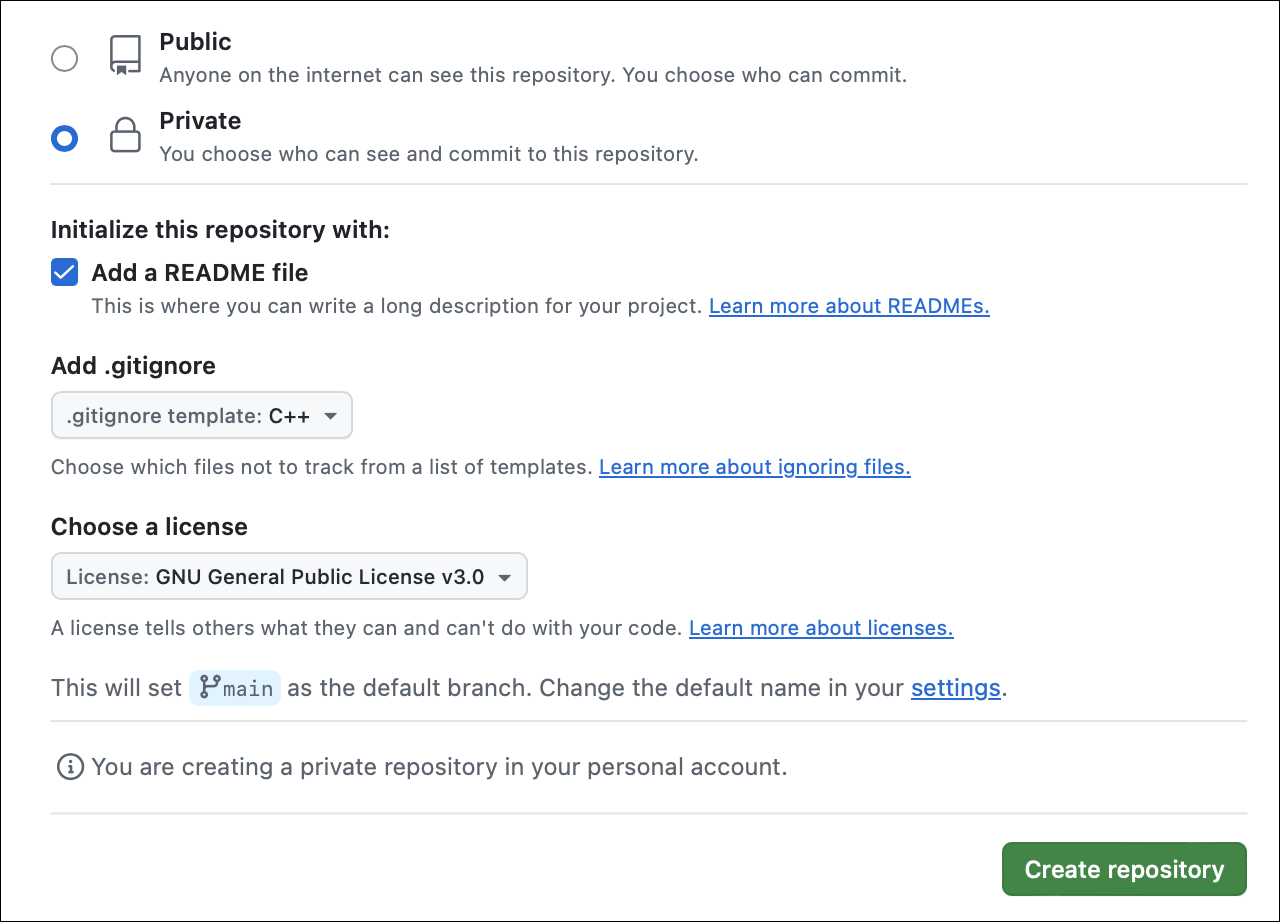
Figure 2.4: Configuring a new repository: Select the options as shown or similar for your repo name. Then hit the Create button.
At this point you now have two versions of your moos-ivp-stanlee repo. The nearly empty one just created on GitHub. And the first version, based on moos-ivp-extend, you created previously on your laptop. The next step is to attach the two.
2.1 Attaching your Local Repo to the GitHub Repo [top]
To attach your locally created moos-ivp-stanlee repo to the one on GitHub, return to the command-line on your laptop and do the following:
  $ cd moos-ivp-stanlee
  $ git branch -M main
  $ git remote add origin git@github.com:stanlee/moos-ivp-stanlee.git
  $ git push --set-upstream origin main
  $ git push
The above assumes (a) your user account on GitHub is also stanlee. If instead it was something like stanlee873, then the above line would be instead:
$ git remote add origin git@github.com:stanlee873/moos-ivp-stanlee.git
It also assumes that you have installed an ssh-key or other form of credentialing on GitHub. Remember that the credentialing for pushing content on GitHub is different than the user login password you may use to log onto your GitHub page.
 $ git remote -v
 origin	https://github.com/stanlee/moos-ivp-stanlee.git (fetch)
 origin	https://github.com/stanlee/moos-ivp-stanlee.git (push)
3 Using Git to clone an Existing Repository
The Git executable is git and takes a number of arguments on the command line for interacting with a software repository. The most essential is the command to clone, i.e., download, a repository from a server.
$ git clone <url> [<destination>]
In this section the git clone command will be used for obtaining the MOOS-IvP repository. It is a publicly available repo, with no password required, and is essential for classwork in MIT 2.680 and generally in the MIT Marine Autonomy Lab.
3.1 Cloning the MOOS-IvP Repository from GitHub [top]
The MOOS-IvP project is on GitHub and can be downloaded/cloned/pulled onto your local machine, essentially as a read-only copy. Below is the git command for checking out the MOOS-IvP software repository:
  $ git clone https://github.com/moos-ivp/moos-ivp.git
   ...
  $ ls
  moos-ivp/
A clone essentially results in the download of a directory from a server. Once the directory/folder/tree is on your machine you can of course modify anything in the tree on your machine, but you will not be able to apply those changes to the GitHub version.
Note the [<destination>] part of the git clone command is optional. If ommitted as above, the name of the folder will be the basename of URL, e.g., the moos-ivp part of moos-ivp.git.
o Build the tree
o Build the alpha mission
3.2 Build the MOOS-IvP Source Code and Run It [top]
Once the tree is downloaded, you should be able to build the code and run the Alpha mission.
- Look inside the README file in the moos-ivp folder and follow the instructions for downloading/installing dependencies. They vary depending on whether you are on a Mac or Linux machine.
- Build the code.
 $ cd moos-ivp
 $ ./build.sh
- Run the alpha mission
 $ cd moos-ivp/ivp/missions/s1_alpha
 $ ./launch.sh 10                        (10 is the time warp)
It should look something like:
3.3 Getting Info on a Repo's Origin [top]
After a repo has been cloned, you may find yourself later wanting to remember where it was cloned from. You can try the following:
  $ cd ~/moos-ivp
  $ git remote show origin
  * remote origin
    Fetch URL: https://github.com/moos-ivp/moos-ivp.git
    Push  URL: https://github.com/moos-ivp/moos-ivp.git
    HEAD branch: main
    Remote branches:
      moos-ivp-22.8               tracked
      moos-ivp-22.8.1             tracked
      moos-ivp-24.8               tracked
    Local branch configured for 'git pull':
      main merges with remote main
    Local ref configured for 'git push':
      main pushes to main (up to date)
Here you can see the github URL "https://github.com/moos-ivp/moos-ivp.git". This can be used anywhere to clone the repo from github as shown earlier:
$ git clone https://github.com/moos-ivp/moos-ivp.git
3.4 Looking at Recent Commit Log [top]
Git has a history of commits and revisions, and it's all stored in the .git folder in the top level of the repo. The log can be viewed with the below command. In this case only the most two recent entries are shown, due to the -n 2 arguments.
  $ cd ~/moos-ivp
  $ git log -n 2 --pretty=short
  commit ed377ae7d8ab8f2ec9ce5c77aded8df91a0f73fc (HEAD -> main, origin/main, origin/HEAD)
  Author: Mike Benjamin <mikerb@csail.mit.edu>

     moved from sprintf to snprintf for utils in MBUtils

  commit b00b505ec7b533cce19b9bddf9eef48d99c2c763
  Author: Mike Benjamin <mikerb@csail.mit.edu>

     minor mods to LegRun OpReg and Waypoint bhvs
Notice the full hash of the most recent commit:
ed377ae7d8ab8f2ec9ce5c77aded8df91a0f73fc
3.5 Looking at Recent Commit Hash [top]
Each git commit has a unique hash value. A full has is 40 characters. The short vesion of the hash is first group of characters of the full hash, typically nine characters. The hash of the most recent commit can be obtained with:
  $ git rev-parse HEAD
  ed377ae7d8ab8f2ec9ce5c77aded8df91a0f73fc
Or the just the short part of the hash:
  $ git rev-parse --short HEAD
  ed377ae7d
4 Configure your Git Environment
When committing changes to a repository, Git creates an attribution record so the author can be identified. You can tell Git what name and email address you want associated with your commits by setting the global defaults:
  $ git config --global user.email "your_email@example.com"
  $ git config --global user.name  "Your Name"
Alternatively, you can remove the --global argument to set repo-specific defaults; the default behavior is equivalent to setting the --local argument explicitly. This is useful when you mange both personal and work repositories, and you want to ensure the system employs the correct email address for each case.
To check the local and global configurations, you can use the following commands:
  $ git config --local --list     #(invoked within a checked out tree)
  $ git config --global --list    #(can be invoked anywhere; reads ~/.gitconfig)
More can be learned about Git online. There are numerous help pages, cheat sheets, and the official Git book is even free online. On this course website we do have a few help pages of our own you can check out:
- http://oceanai.mit.edu/ivpman/help/git_log_cmd
- http://oceanai.mit.edu/ivpman/help/git_update_cmd
- http://oceanai.mit.edu/ivpman/help/git_status_cmd
- http://oceanai.mit.edu/ivpman/help/git_add_remove_cmds
- http://oceanai.mit.edu/ivpman/help/git_mv_cmd
- http://oceanai.mit.edu/ivpman/help/git_commit_cmd
- http://oceanai.mit.edu/ivpman/help/git_setup_your_own_repo
The two steps are:
- Create the essentially empty moos-ivp-stanlee repo on your GitHub account.
- Attach your local moos-ivp-stanlee repo to the one on GitHub.
Document Maintained by: mikerb@mit.edu
Page built from LaTeX source using texwiki, developed at MIT. Errata to issues@moos-ivp.org. Get PDF